
Forward selected emails
Choose your email provider for its web forwarding controls, sender/domain options and official instructions.
Learn the steps; wait before switching forwarding on
Automatic event receiving is not active. ReminderStream currently offers Gmail destination-confirmation setup only. Guides for other providers describe their forwarding tools; they do not mean ReminderStream supports their confirmation messages or receiving yet.
Choose the right destination
Automatic forwarding: when your provider is supported in Settings, copy your assigned personal automatic-forwarding address. Use that exact address throughout setup and confirmation.
Send or manually forward one email: use add-event@inbox.reminderstream.com from your verified, enabled account address when Settings says direct receiving is active. This does not need an automatic-forwarding rule.
Gmail
Sender or domain filters
Our illustrated Gmail guide covers destination confirmation and sender/domain filters.
Where to find the forwarding controls
Open ReminderStream Settings → Automatic Gmail forwarding.
Select a verified, enabled Gmail address and choose Prepare forwarding setup. Copy your exact assigned personal address.
Add that personal address in Gmail’s forwarding settings.
Follow the illustrated Gmail guide below. The school’s address belongs in the sender filter, not the destination.
Copy the confirmation code from ReminderStream Settings into Gmail.
Choose Reload forwarding setup to check for the supported Google code.
Wait until Settings says automatic event receiving is active.
Destination confirmation alone does not activate processing. Once active, follow the full guide to create a sender or domain filter.
One sender
Use the school’s complete sender address in From.
A sending domain
Use the domain in From and inspect the search matches before creating a filter.
Destination confirmation
Google sends a destination-confirmation message. ReminderStream currently presents supported Google codes to the signed-in owner.
Plan, privacy and delivery limits
- Automatic event processing is awaiting activation. A confirmed destination alone does not mean receiving is active.
Stop forwarding
Remove the forwarding filter in Gmail and retire its setup in ReminderStream Settings.
Official instructions and screenshots
Provider controls can change. Check the linked official guide if your screen differs. Reviewed October 12, 2026.
Outlook / Hotmail
Conditional inbox rules
Use Outlook.com for Outlook, Hotmail, Live or MSN mailboxes. Rules in the web mailbox avoid relying on a running desktop app.
Provider instructions; ReminderStream setup is not available yet. Our current destination-confirmation setup is for Gmail. Do not use a Gmail setup for Outlook / Hotmail or turn on forwarding to ReminderStream yet.
Where to find the forwarding controls
Open Outlook in your browser: Settings → Mail → Rules → Add new rule.
Give the rule a name. Web mailbox rules do not require a desktop app to stay open.
Choose From and enter the school’s full sender address.
Add a subject condition to limit what gets shared. For a domain, use sender-address matching only if offered and inspect the matching addresses.
Choose Forward to and enter your assigned personal ReminderStream address.
Keep your mailbox copy. Avoid Forward as attachment. Forward and Redirect behave differently; use the method ReminderStream supports when enrollment is available.
Leave the rule off until this provider is supported and receiving is active.
Before saving, check conditions, the destination and rule order. A saved rule alone does not prove delivery.
One sender
Choose From and the full school sender address. Select the actual address, not only its display name.
A sending domain
If your condition list offers sender-address text matching, try schoolexample.com and check the actual From addresses it matches. Otherwise use individual sender addresses.
Destination confirmation
Forward and Redirect have different sender behavior. Choose the method ReminderStream supports when enrollment becomes available; neither action proves ownership by itself.
Plan, privacy and delivery limits
- Forward to appears forwarded by you; Redirect to preserves the original sender. ReminderStream still needs to authenticate the forwarding account.
Stop forwarding
In Mail → Rules, switch off this rule or remove it. Check Mail → Forwarding for a separate whole-inbox setting.
Official instructions and screenshots
Provider controls can change. Check the linked official guide if your screen differs. Reviewed October 12, 2026.
Microsoft 365
Conditional rules; organization policy
For a work or school mailbox, ask your administrator whether selected emails may be forwarded outside the organization.
Provider instructions; ReminderStream setup is not available yet. Our current destination-confirmation setup is for Gmail. Do not use a Gmail setup for Microsoft 365 or turn on forwarding to ReminderStream yet.
Where to find the forwarding controls
Open Outlook in your browser: Settings → Mail → Rules → Add new rule.
Give the rule a name. Web mailbox rules do not require a desktop app to stay open.
Choose From and enter the school’s full sender address.
Add a subject condition to limit what gets shared. For a domain, use sender-address matching only if offered and inspect the matching addresses.
Choose Forward to and enter your assigned personal ReminderStream address.
Keep your mailbox copy. Avoid Forward as attachment. Forward and Redirect behave differently; use the method ReminderStream supports when enrollment is available.
Leave the rule off until this provider is supported and receiving is active.
Before saving, check conditions, the destination and rule order. A saved rule alone does not prove delivery.
One sender
Use a complete approved sender address. Follow your organization’s data-sharing rules.
A sending domain
Use a sender-address condition only if your mailbox offers it. Narrow the rule with a subject and verify sample matches.
Destination confirmation
A saved rule can still be blocked by tenant policy. ReminderStream enrollment and authentication must also support this provider.
Plan, privacy and delivery limits
- External forwarding can be blocked by outbound-spam policy, remote-domain settings or mail-flow rules. Ask your administrator; do not bypass the restriction.
Stop forwarding
Turn the rule off in Outlook on the web → Settings → Mail → Rules. Ask the administrator about any separate mailbox forwarding.
Official instructions and screenshots
Provider controls can change. Check the linked official guide if your screen differs. Reviewed October 12, 2026.
iCloud Mail
Conditional Mail rules
Use iCloud.com Mail rules to select messages, rather than enabling forwarding for every incoming email.
Provider instructions; ReminderStream setup is not available yet. Our current destination-confirmation setup is for Gmail. Do not use a Gmail setup for iCloud Mail or turn on forwarding to ReminderStream yet.
Where to find the forwarding controls
Open iCloud.com Mail → Settings → Rules → Add.
Use a selective Mail rule rather than forwarding every incoming message.
Name the rule and choose a sender condition under Message.
Enter the complete school address. Use domain text only if your menu offers the intended match; otherwise use individual senders.
Under Action, choose forwarding to your assigned personal ReminderStream address.
This requires an iCloud setup from ReminderStream when supported; do not reuse a Gmail setup. Retain your original messages.
Wait for iCloud support and active receiving before adding the rule.
Review the condition and destination first. New or changed rules can take up to 15 minutes to take effect.
One sender
Start with the complete address mykids@schoolexample.com.
A sending domain
Apple documents criteria-based forwarding but does not specify an exact-domain matcher here. Use domain text only if your Message menu offers the needed match; otherwise list individual senders.
Destination confirmation
Follow any confirmation offered by Apple. ReminderStream does not currently provide iCloud forwarding enrollment.
Plan, privacy and delivery limits
- New or changed rules may take up to 15 minutes to affect incoming mail. A rule has one forwarding destination.
Stop forwarding
Open Settings → Rules and remove the forwarding rule. Also check the separate whole-inbox Forwarding setting.
Official instructions and screenshots
Provider controls can change. Check the linked official guide if your screen differs. Reviewed October 12, 2026.
Yahoo Mail
Whole-inbox forwarding; paid feature
Yahoo’s official guide documents forwarding incoming mail for Mail Plus, subject to locale availability. It does not establish a sender/domain forwarding recipe.
Provider instructions; ReminderStream setup is not available yet. Our current destination-confirmation setup is for Gmail. Do not use a Gmail setup for Yahoo Mail or turn on forwarding to ReminderStream yet.
Where to find the forwarding controls
Open desktop Yahoo Mail → More options → Settings → Mailboxes.
Auto-forwarding requires the plan and locale availability described in Yahoo’s linked guide.
Select your primary mailbox and look for Auto-forwarding.
This is whole-inbox forwarding. It is not a verified way to forward only a school sender or domain.
Keep Auto-forwarding off for now.
Yahoo sends destination verification using Verify. ReminderStream does not handle Yahoo confirmation yet; do not use a Gmail setup.
Use manual forwarding of selected messages once direct receiving is active.
Check ReminderStream Settings before sending. Do not enable whole-inbox forwarding to approximate a domain filter.
One sender
No verified automatic single-sender setup is provided here. Manually select the school message instead.
A sending domain
Do not enable whole-inbox forwarding to approximate a domain filter; it can share unrelated mail.
Destination confirmation
Yahoo requires destination verification. Gmail’s confirmation-code flow is not a Yahoo verification flow.
Plan, privacy and delivery limits
- Mail Plus is required by the linked guide; the option is unavailable in some locales. Check your account before buying anything.
Stop forwarding
Remove or disable Auto-forwarding in the primary mailbox settings and confirm it is off.
Official instructions and screenshots
Provider controls can change. Check the linked official guide if your screen differs. Reviewed October 12, 2026.
Proton Mail
Conditional forwarding; paid plans
Paid Proton plans offer conditional forwarding with a destination invitation.
Provider instructions; ReminderStream setup is not available yet. Our current destination-confirmation setup is for Gmail. Do not use a Gmail setup for Proton Mail or turn on forwarding to ReminderStream yet.
Where to find the forwarding controls
Open Settings → All settings → Forward and auto-reply → Add rule.
Conditional forwarding requires a paid plan.
Choose your source address and personal destination when Proton setup is supported.
Use the address assigned for this provider; the pictured destination is fictional.
Add a condition and inspect its matching operator.
The official example uses a subject keyword. Sender/domain options are not all verified here.
Wait for Proton confirmation support and active receiving.
Leave the invitation pending. External forwarding disables end-to-end encryption for the forwarding source address.
One sender
Use the complete sender if sender matching is offered. The article does not list every option.
A sending domain
Use domain matching only if available and verified. Otherwise choose a narrow subject or manually forward; keep conditions in place.
Destination confirmation
The external destination must accept the invitation. ReminderStream currently displays only Google confirmations.
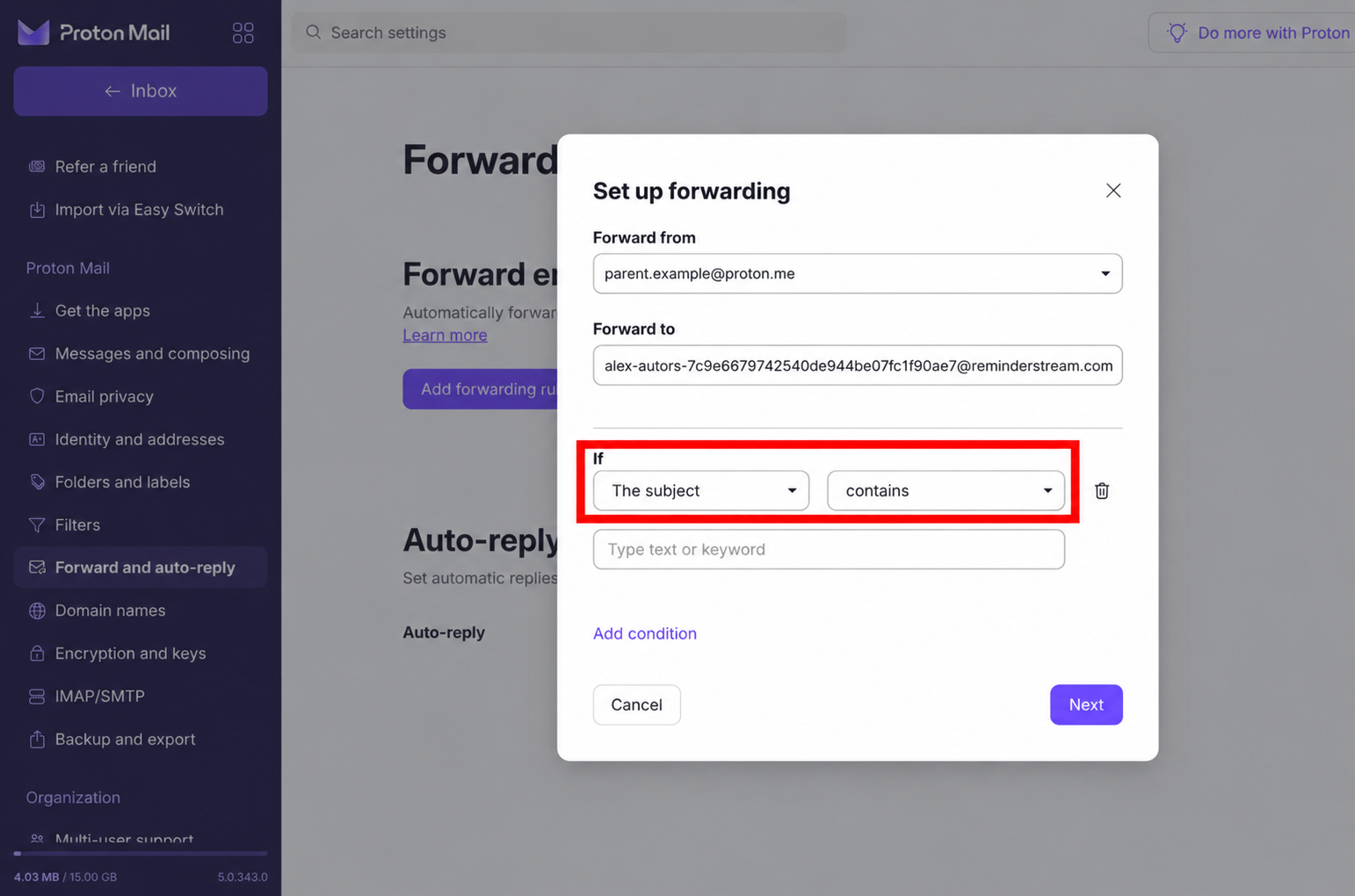
Use your own assigned destination. When Settings offers automatic-forwarding setup for this provider, copy your personal address from there. The pictured address is fictional. The school address belongs in the sender condition. Your shared manual address is not an automatic-forwarding destination.
Plan, privacy and delivery limits
- External forwarding disables end-to-end encryption for the forwarding source address. Already forwarded emails are not forwarded again.
Stop forwarding
Pause or remove the rule under Forward and auto-reply.
Official instructions and screenshots
Provider controls can change. Check the linked official guide if your screen differs. Reviewed October 12, 2026.
Fastmail
Conditional server rules
Fastmail’s Filters & Rules can forward a copy of messages matching chosen conditions.
Provider instructions; ReminderStream setup is not available yet. Our current destination-confirmation setup is for Gmail. Do not use a Gmail setup for Fastmail or turn on forwarding to ReminderStream yet.
Where to find the forwarding controls
Open Settings → Filters & Rules → Create rule.
Use a conditional rule instead of forwarding every message for the address.
Add a From condition for the school sender.
Add a subject condition if needed. For a domain, inspect matches including subdomains and lookalike addresses.
Continue, inspect the preview and choose Create rule → Send a copy to.
Enter your assigned personal ReminderStream destination when Fastmail setup is supported. Keep the original copy and do not apply an initial test rule to old mail.
Save only after Fastmail is supported and receiving is active.
Check conditions and the destination before saving. Spam or discard rules can prevent delivery.
One sender
Use the complete sender address in the From condition.
A sending domain
Try the school domain in From and examine the preview, including lookalike addresses and subdomains. Do not assume text matching is an exact-domain boundary.
Destination confirmation
Follow any destination checks shown by Fastmail. ReminderStream’s Fastmail enrollment and authenticated receiving are not available yet.
Plan, privacy and delivery limits
- Spam and discard rules can prevent forwarding. Use a conditional rule rather than address-wide forwarding for this workflow.
Stop forwarding
Return to Filters & Rules and remove this forwarding rule; review any separate address forwarding.
Official instructions and screenshots
Provider controls can change. Check the linked official guide if your screen differs. Reviewed October 12, 2026.
Zoho Mail
Conditional filters; plan restrictions
Zoho supports filter-based forwarding and destination verification. Newly registered Free-plan users do not have email forwarding.
Provider instructions; ReminderStream setup is not available yet. Our current destination-confirmation setup is for Gmail. Do not use a Gmail setup for Zoho Mail or turn on forwarding to ReminderStream yet.
Where to find the forwarding controls
Open Zoho Mail Settings → Filters → New Filter.
Newly registered Free-plan users do not have forwarding; organization restrictions may also apply.
Name the filter and add a school sender condition.
Choose the matching operator carefully. Contains matches text; it is not a guaranteed exact-domain boundary.
Choose forwarding to your assigned personal ReminderStream destination.
Use a Zoho setup when supported. Do not configure the same destination for both whole-mailbox and filter forwarding. Preserve original messages.
Wait for Zoho confirmation support and active receiving.
A new destination requires verification. Leave the filter pending; ReminderStream’s Google-code display does not support Zoho codes.
One sender
Match the complete school address using the sender condition.
A sending domain
The edited example uses sender Contains schoolexample.com. This is a text match, not a guaranteed exact-domain boundary; inspect actual senders and prefer full addresses for narrow rules.
Destination confirmation
Zoho sends a destination code. ReminderStream’s current Google-code display does not support this code.
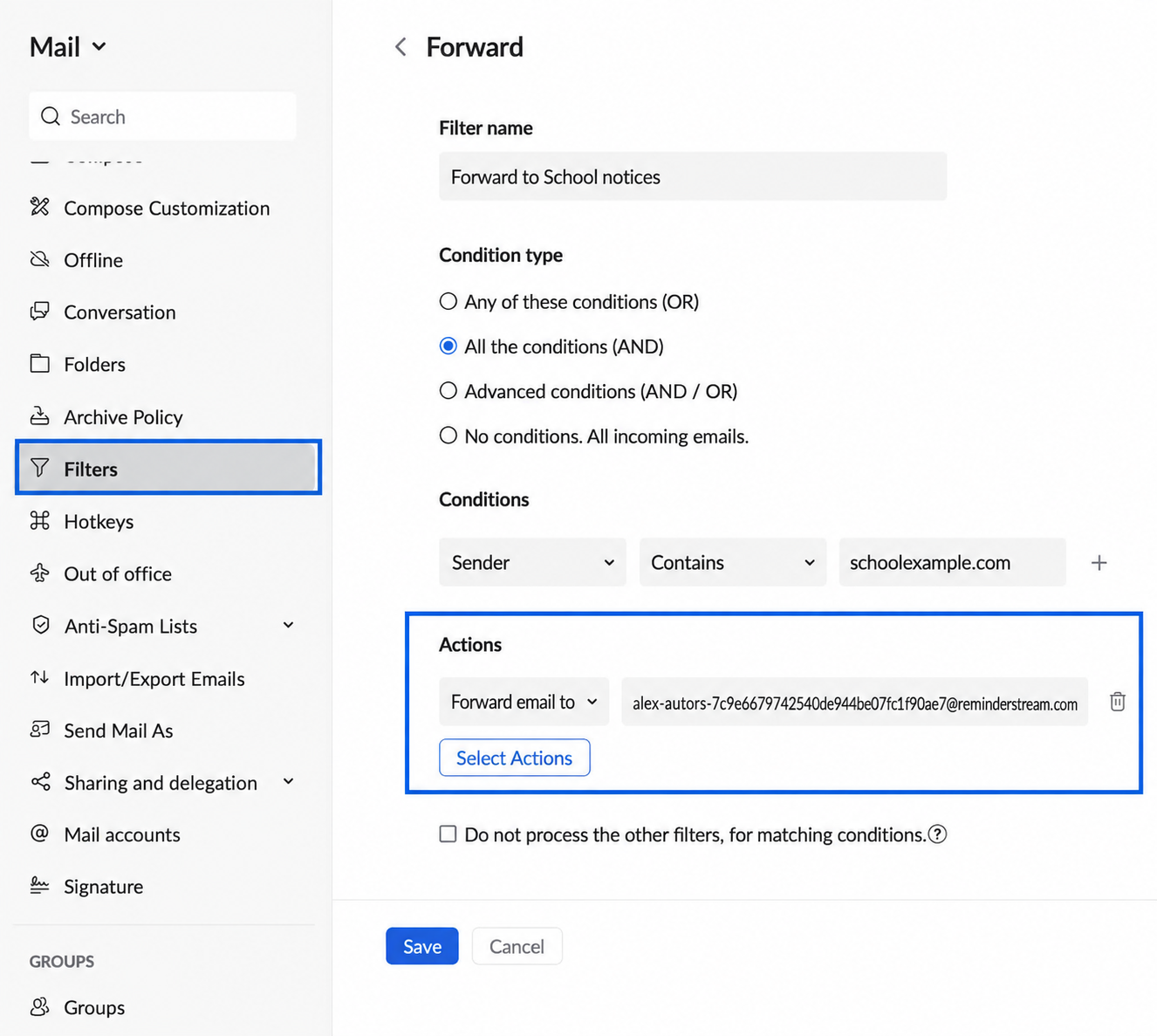
Use your own assigned destination. When Settings offers automatic-forwarding setup for this provider, copy your personal address from there. The pictured address is fictional. The school address belongs in the sender condition. Your shared manual address is not an automatic-forwarding destination.
Plan, privacy and delivery limits
- Do not configure the same destination for both whole-mailbox forwarding and filter forwarding. Already auto-forwarded messages are not forwarded again. Admin restrictions may apply.
Stop forwarding
Disable or remove the filter in Settings → Filters. Also review whole-mailbox Forwards in Mail Accounts.
Official instructions and screenshots
Provider controls can change. Check the linked official guide if your screen differs. Reviewed October 12, 2026.
Check a narrow rule before relying on it
Start with one school sender. A domain keyword can match unexpected addresses; examine the actual From addresses, including subdomains. Add a subject condition to reduce unrelated sharing. Keep a copy in your mailbox and leave whole-inbox forwarding off.
Once this provider and receiving are active, use a new fictional message from another mailbox you control. Check History, review its dates and save only the events you want. A saved rule or confirmation screen alone does not prove that ReminderStream received the email. If nothing appears, check the destination, matching conditions, spam folder, account limits and administrator policy.
A school notice may have no event or no clear date. Check the original message and create a reminder manually when needed. Read our Data Policy before sharing email content.